Google Apps Script now shows checkboxes on the permissions screen, letting users grant access to some scopes while denying others. This means your Google add-on can no longer assume it has all the permissions it requested — it needs to check and handle missing OAuth scopes gracefully.
To illustrate the problem, here’s a simple Google Sheets add-on that fetches the current temperature from a Weather API, writes it to the sheet, and emails it to the signed-in user.
function onOpen() {
SpreadsheetApp.getUi().createMenu("Weather Report").addItem("Start", "buildWeatherReport").addToUi();
}
function getTemperature() {
// Require the UrlFetchApp permission
const endpoint = "https://api.open-meteo.com/v1/forecast";
const latitude = 40.7128;
const longitude = -74.006;
const current = "temperature_2m";
const url = `${endpoint}?latitude=${latitude}&longitude=${longitude}¤t=${current}`;
const data = JSON.parse(UrlFetchApp.fetch(url).getContentText());
return data.current.temperature_2m;
}
function writeToSheet(value, range) {
// Require the Spreadsheet permission
SpreadsheetApp.getActive().getRange(range).setValue(value);
}
function sendEmail(subject, body) {
// Require the Email permission
const email = Session.getActiveUser().getEmail();
MailApp.sendEmail(email, subject, body);
}
function buildWeatherReport() {
const temperature = getTemperature();
const message = `The current temperature in NY is ${temperature}°C`;
writeToSheet(message, "A1");
sendEmail("Weather in NY", message);
}The Google Script adds a new menu item titled “Weather Report” to the Google Sheet. When the user clicks on the menu for the first time, they are required to authorize the addon. There are three permissions required:
- Spreadsheet to write the temperature to the sheet
- Email to send the temperature to the signed-in user
- UrlFetchApp to fetch the temperature from the external API
The permissions screen adds checkboxes against each permission. The user can grant access to all scopes, some scopes, or none at all.
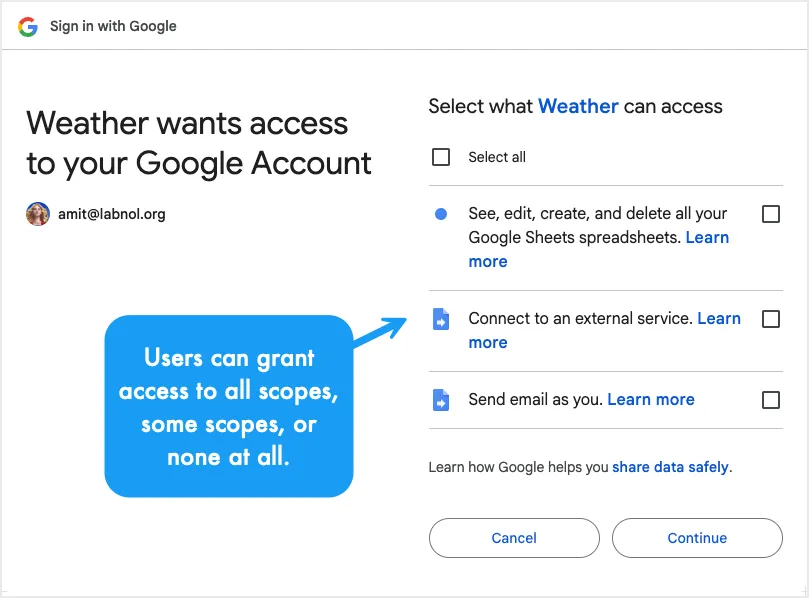
The problem is that if the required permissions are not granted, the script will fail with an error. For instance, if the user grants access to only the Spreadsheet permission, the script will still fail as it won’t have the capability to send emails or fetch data from the Weather API.
How to Check for Required OAuth Scopes
The fix is to check for the required permissions before running any function. If any scopes are missing, show a modal dialog with a link to the authorization page. Here’s a hasRequiredScopes() helper that does this:
const REQUIRED_SCOPES = [
  "https://www.googleapis.com/auth/script.container.ui",
  "https://www.googleapis.com/auth/spreadsheets.currentonly",
  "https://www.googleapis.com/auth/script.external_request",
  "https://www.googleapis.com/auth/mail.send",
];

function hasRequiredScopes() {
  const authInfo = ScriptApp.getAuthorizationInfo(ScriptApp.AuthMode.FULL);
  const granted = authInfo.getAuthorizedScopes() || [];
  const missing = REQUIRED_SCOPES.filter(s => !granted.includes(s));

  if (missing.length === 0) return true;

  const authUrl = authInfo.getAuthorizationUrl();

  try {
    const html = `<a href="${authUrl}" target="_blank">Click here to grant access</a>`;
    SpreadsheetApp.getUi().showModalDialog(
      HtmlService.createHtmlOutput(html).setWidth(300).setHeight(100),
      "Authorization Required"
    );
  } catch (e) {
    throw new Error("Open this link to grant access: " + authUrl);
  }

  return false;
}
You can then call this at the start of your main function:
function buildWeatherReport() {
  if (!hasRequiredScopes()) return;

  const temperature = getTemperature();
  const message = `The current temperature in NY is ${temperature}°C`;
  writeToSheet(message, "A1");
  sendEmail("Weather in NY", message);
}
The “Authorization Catch-22” Problem
The authorization modal dialog can be only shown if the users has previously granted access to the container.ui scope. If the user has not granted access to this scope, the dialog will not be shown and the script will fail with an error.
The other workaround is to use the Browser.msgBox method to show a message to the user and ask them to grant the required permissions. But that will also not work if the user has not granted access to the spreadsheets.currentonly or spreadsheets scope.
In that case, the script will throw an error with the authorization URL and that will show up in spreadsheet window as an error message. Not the best user experience but it’s the only way to get the user to grant the required permissions.
How to Reset the Permissions
If you would like to test your script as a first-time user, you can reset the permissions from your Google account settings. Go to your Google account settings and search for your script. Then click on Delete all connections to revoke access to your script.






