Display Windows Clock On Your Desktop With a Keyboard Shortcut

 The clock in your Windows taskbar shows the current time but not the date or the day of the week. You can however setup a keyboard shortcut that will open the Windows clock on your desktop that will have both the date as well as time.
But before that, lets look at some existing options that help us view the current date on Windows desktops:
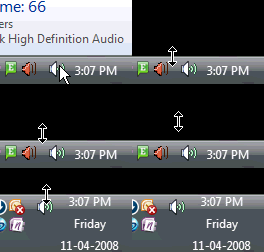 Option 1: Drag the edge of your taskbar towards north and the date will automatically become visible along with the system time.
Option 2: Install calendar gadgets that are available with Google Desktop or the Vista Sidebar.
Option 3: Take your mouse pointer to the extreme right-bottom corner of your desktop, wait for few seconds and the date information will pop on your screen.
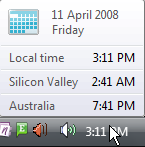 Do you find any of these methods efficient ? #1 and #2 are discounted because they occupy precious screen estate on your desktop. #3 is popular but again, keyboard fans often don’t like the idea of using a mouse to accomplish tasks in Windows.
Related: Most Useful Desktop Keyboard Shortcuts
If you neither want to increase the height of your taskbar nor want to install new clock widgets, here’s an alternate trick that will popup the Windows Calendar + Clock on your screen when your press the keyboard shortcut Ctrl+Alt+D.
Step 1. Right click anywhere on the desktop and choose New -> Shortcut.
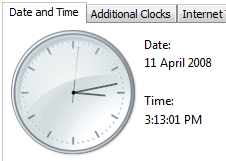 Keyboard Shortuct to Display Windows Clock with Date and Time
Step 2. Type timedate.cpl and click “Finish.” You will see a time-date shortcut on your desktop.
Step 3. Right click that shortcut icon, select Properties and type “D” in the box that says “Shortcut key”.
You’re done. Whether you reading a web page or typing an email in Outlook, press Ctrl+Alt+D to see the current date and time on your screen. Press Esc to close that Window.
Bonus Tip: If your in Microsoft Word, type Alt+Shift+D to insert the date while Excel users can type Ctrl+; or Ctrl+Shift+; for the current system time.
Further Reading: Know the current time in different geographic regions with World Time Clocks or use Google to find the current time in any city of the world.

Amit Agarwal
Google Developer Expert, Google Cloud Champion
Amit Agarwal is a Google Developer Expert in Google Workspace and Google Apps Script. He holds an engineering degree in Computer Science (I.I.T.) and is the first professional blogger in India.
Amit has developed several popular Google add-ons including Mail Merge for Gmail and Document Studio. Read more on Lifehacker and YourStory