Let’s assume you have two computers at home and you want to connect them together so that you can easily share an internet connection between the two machines or transfer photos, music and other files from one computer to another. How do you do this?
Connect Two Computers with an Ethernet Cable
There are two options - you can either buy a router or, if you are looking for something more simple and don’t want to spend money on new networking hardware, you can connect the two computers using a commonly-available cable. The latter method doesn’t involve any complicated network settings and you will still be able to share files, internet connection, and even printers between computers.
To set up this basic wired home network, all you need is an inexpensive Ethernet crossover cable and the other requirement is that network cards* (also known as LAN or Ethernet cards) should be installed on each of you computers.
PS
should not be an issue because network cards are available on most newer machines by default but if you are working with a very old computer, you can either attach an internal LAN card to your computer’s motherboard or go for a USB Network adapter that will turn a USB port into an Ethernet (RJ45) port.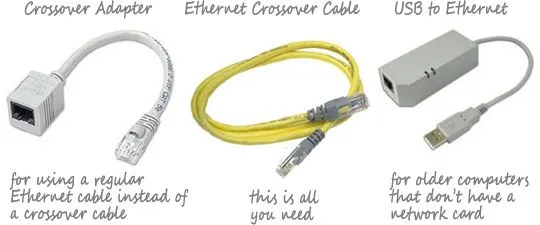 Also see: How to Identify Computer Cables and Connectors
An Ethernet crossover cable looks like a standard Ethernet cable but the internal wiring is a little different. You can purchase crossover cables at Amazon.com or from your local computer store. If you have trouble finding them, you can purchase an inexpensive crossover adaptor and that will let you use any standard Ethernet cable as a crossover cable.
Connect Computers with an Ethernet Crossover Cable
Before connecting the two computers with a physical cable, make sure that both machine are using the same workgroup. Here is step-by-step guide that explains how you can change the workgroup of your computers.
Changing workgroup in Windows XP - From the Start menu, right-click “My Computer.” Select Properties in the drop-down menu, and then select the second tab that says “Computer Name” from the System Properties window. Now click the “Change” button, enter a unique Workgroup name and reboot your computer.
Changing workgroup in Windows 7 or Vista - Open the Control Panel, type “Workgroup” in the search box, and select the entry that says “Change Workgroup Name.” Click the “Change” button, enter a Workgroup name and restart the computer. Windows 7 users can skip one step; simply type “Workgroup” in the search box in the start menu, and select the first entry, then proceed as above.
Now that the workgroups are same for both computers, connect the two computers together using the Ethernet crossover cable. Simply plug-in one end of the crossover cable into the network adapter of Computer A and connect the other end of the cable to the network adapter of Computer B.
Windows will automatically recognize the new network, and you can now easily view files and folder that the other computer has shared. Simply open Networks from the Start Menu (or the Control Panel), and you should see the other computer by its name. You can then browse any shared files on the other computer, and can even utilize shared printers.
Troubleshooting - If you do not see the other computer under Networks, you probably have a prompt at the top of your Network window saying that Network discovery is turned off . Select “Turn on Network Discovery and File Sharing.” In the next prompt, select “No, make the network I am connected to a private network.” Now you should see the other computer on the home network.
PS: While it is possible to share files between two computers connected with a crossover cable without making them part of the same workgroup, the method will only work if both computers have this network set as a private network, and may still cause problems. It is therefore advisable to have both computers on the same workgroup before sharing files and printers.
Share an Internet Connection Between Two Computers
There are scenarios where you may want to share the same internet connection between two computers. For instance:
Situation A - You have setup a Wi-Fi network at home but your old desktop computer doesn’t have a wireless network card. In that case, you can use the laptop to connect to the internet wirelessly and then share that same connection with the desktop over a crossover Ethernet cable.
Situation B - You have a netbook with a built-in cellular data connection. You can share that connection with any another computer at home through the crossover Ethernet cable.
Situation C - You use a (slow) Wireless USB modem with your laptop computer while your desktop is connected to an ADSL Broadband line and there’s no router at home. For any bandwidth intensive tasks, like when you want to backup photos from your laptop to an online service, you can connect the laptop to the desktop and things will happen much faster.
OK, let’s look at the steps required for sharing an Internet connection.
First, if you only wish to share internet connection and not files, both computers need not belong to the same workgroup. All you need to do is to connect the two computers with the Ethernet crossover cable, and then turn on Internet connection sharing in the computer that already has an Internet connection. The instructions vary for different versions of Windows:
For Windows XP - Select “Network and Internet Connections” from the Control Panel and click “Network Connections.”
Right-click on the network connection you wish to share (the one connected to the internet), select Properties, click on the “Advanced” tab, and then check the box that says “Allow other network users to connect through this computer’s Internet connection.” Click OK, and the second computer that you have connected to this computer with the Crossover Cable should have internet access now.
For Windows 7 and Vista - Open Control Panel, enter “network connections” in the search box on the top right and select “View Network Connections.”
Right-click on the network connection you wish to share (this must be the one connected to the internet) and select Properties. Select the “Sharing” tab and then check the option that says “Allow other network users to connect through this computer’s Internet connection.” Click OK, and the other computer you have connected to this Windows 7 or Vista computer should have internet access now.
Related guide: Connect your Laptop to the TV Screen






