 You can do lot of interesting things on the web if you know how to modify the user-agent string of your web browser.
For instance, change the Chrome’s user-agent string to that of iPhone Safari and you’ll be to read popular magazines for free. Or change the user-agent to Googlebot and you can read Wall Street Journal stories without a subscription. Similarly, if you use the user agent of iPad on your desktop, Google will render the tablet version of Gmail which is more beautiful than the original desktop version.
While it is relatively easy to edit the User-Agent string of Firefox, IE, Flock or Apple Safari through add-ons and registry hacks but you don’t have that luxury in Chrome since Google’s browser doesn’t support external add-ons yet.
Update [Jan 16, 2012] Please note that the following Chrome hack is no longer required as Chrome’s user agent can be easily changed through the use of extensions. You can either download User Agent Switcher or User Agent Selector from the Chrome Store.
How to Switch User Agent of Google Chrome
It is however possible to change the user-agent of Google Chrome via the following hack - open Chrome.dll file inside a Hex viewer, search for the Chrome User Agent string and overwrite (not insert) that with the user-agent of another browser. Here are the full steps involved:
0. Make a backup of chrome.dll file - the file is available in the 0.2.xx folder of your Chrome installation folder (refer to #2).
1. Open chrome.dll inside Xvi32 and search for a patten that matches the default user agent string for Google Chrome :
Mozilla/5.0 (Windows; U; Windows NT 5.1; en-US) AppleWebKit/525.13 (KHTML, like Gecko) Chrome/0.X.Y.Z Safari/525.13.
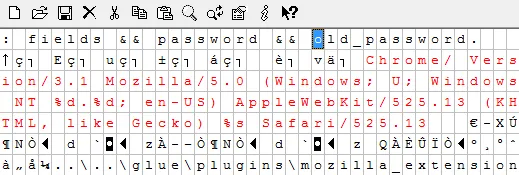
2. Point the cursor to the letter M and choose Edit -> Overwrite String. Paste the user-agent of any other browser here. For instance, the strings for iPhone and Google spiders are:
Mozilla/5.0 (iPhone; U; CPU like Mac OS X; en) AppleWebKit/420+ (KHTML, like Gecko) Version/3.0 Mobile/1A543 Safari/419.3
Mozilla/5.0 (compatible; Googlebot/2.1; +http://www.google.com/bot.html)
3. Close Google Chrome (if running) and then save the chrome.dll file inside the hex editor. Restart chrome.exe and type about: in the address bar to confirm if the user agent has changed. If you have trouble opening chrome after making the above changes, just delete the modified chrome.dll file and replace it with the old backup.
 iPhone mobile version of Google Reader in Google Chrome
As an example, I change the user agent of Google Chrome to iPhone and that is the reason why Google opening the iPhone optimized version of Google Reader even inside Chrome.
If you plan to use this trick more frequently, a better option is that you create multiple copies of chrome.dll - one per user agent. Now if you want Chrome to emulate IE or Firefox, just make rename the chrome-firefox.dll or chrome-iphone.dll to chrome.dll.






